Word Sketch
A word sketch provides a summary of the grammatical context surrounding a word. In doing so, it gives you the words that occur around yours in a grammatical sense, such as the adjectives used to describe your word, or perhaps the verbs your word acts as the object of. In each relation, the words are ranked by the strength of their association with your word.
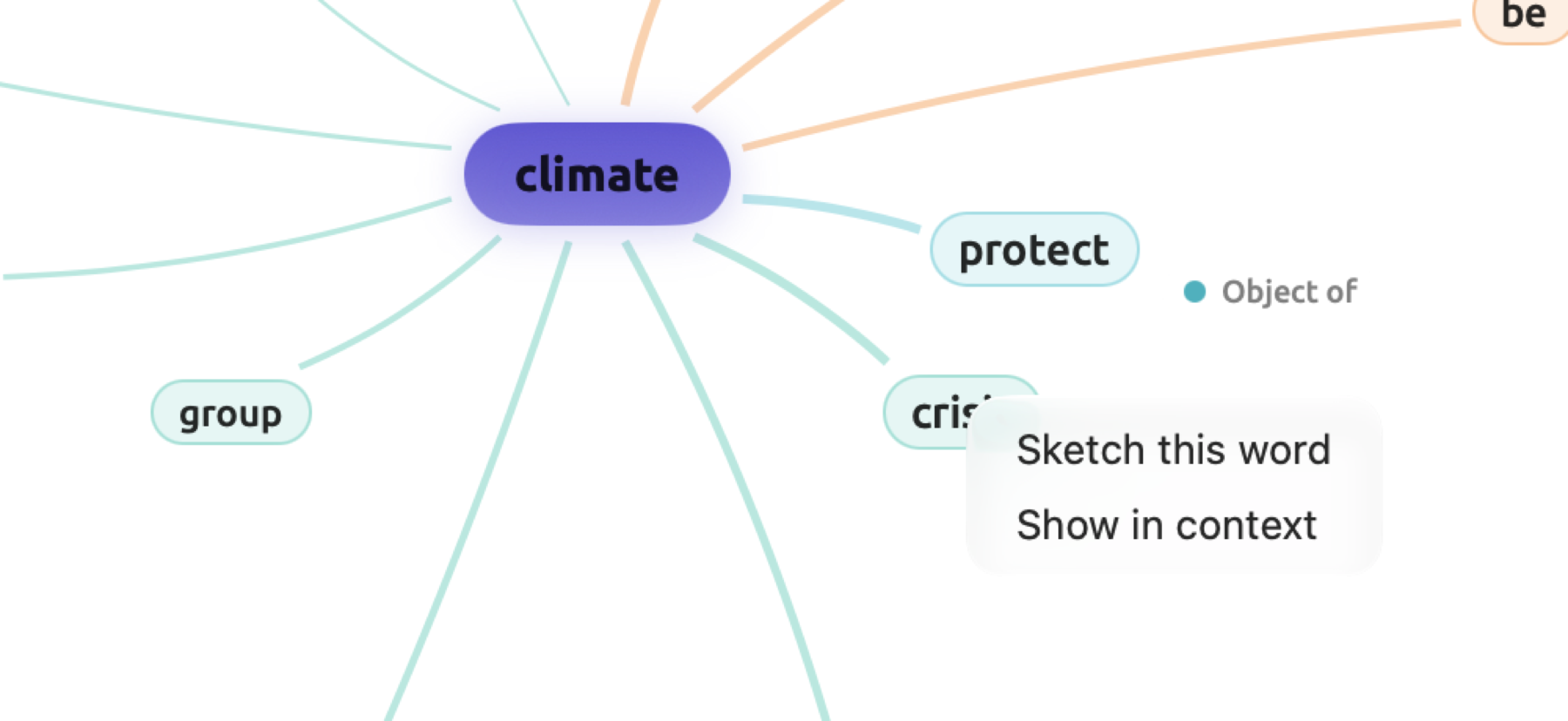
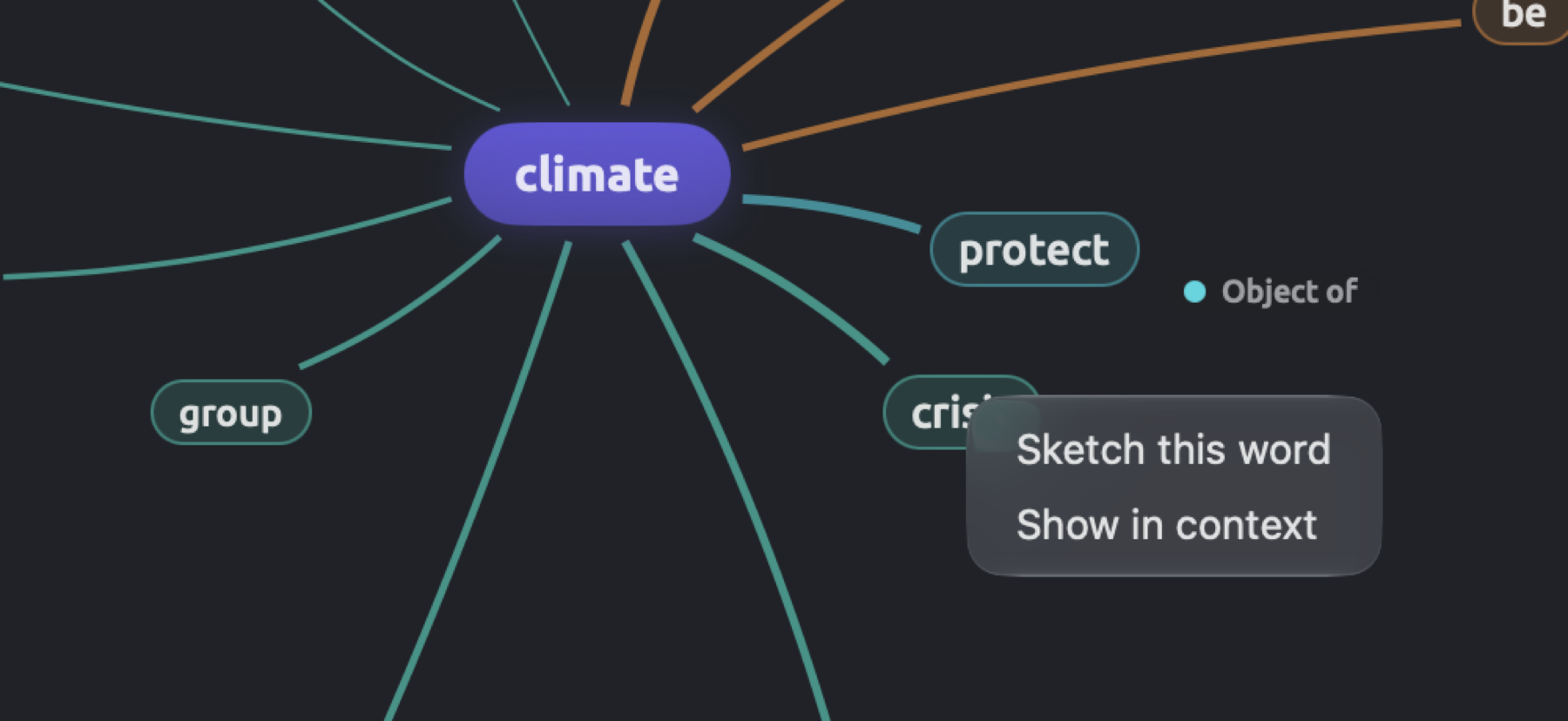
If you were to create a sketch for climate in the op-ed “Running Out of Time” in the example project, you would find information about how the author refers to climate science, climate policy, and the climate crisis, how the author says the climate changes, and how they seek to protect it. Furthermore, from any partner you can go straight to the sentences containing your original word paired with it.
Word sketches come in handy when trying to understand how something is presented in your documents, such as what an author writes that the climate does, or which adjectives are used in relation to the word policy in an author’s writings. Generally speaking, sketches can be conducted on individual documents as you browse them, or on sets or entire projects to see how a group of texts uses a word.
Instead of sorting partners according to their relations, the Code Sketch option sorts partners according to the codes that cover each occurrence. Sketch Space, which compares a word’s sketches between codes or between the values of an attribute such as “Stance”, is explained separately in Chapter 14, Sketch Space.
Key terms
- The sketched word refers to the word in focus in the current sketch. Word sketches operate on dictionary forms of words, or lemmas; therefore, costs and cost refer to the same word in word sketches. Pooled together are the word classes of the sketched word, while those of its partners remain separate (see Grammatical relations below).
- Relation refers to the particular grammatical relationship linking the sketched word with another word, such as subject, object, or adjective modifier. LemmaLoom recognizes twelve relations, and each of these collects one or more dependency relations recognized in the grammar analysis, including
nsubjandnsubjpassfor Subjects. The relations differ from the ten functions outlined under Key terms in Chapter 11, The Grammar Inspector. - Links represent occurrences within a text where the grammar analysis connects the sketched word to another word.
- Partners are words that are connected with the sketched word in links, as illustrated in “the climate crisis,” where crisis acts as a partner of climate in the relation In compounds with.
- Frequency, f, is the quantity of links existing between the sketched word and one of its partners in one particular relation.
- logDice determines the ranking order of the partners. As such, logDice considers the proportion of occurrence of the two words together out of their individual occurrence frequency. The score peaks at 14 when the two words occur only with each other, and every point below that lowers this proportion by half (see Scores for details).
- The scope defines which documents serve to generate the sketch, namely one document, a set, a tag, or the entire project.
Where word sketches are available
| Place | What it sketches | How to get there |
|---|---|---|
| Word Sketch in the inspector’s Grammar tab | the document in the reader | View ▸ Inspector ▸ Grammar (⌥⌘2), then Word Sketch |
| Code Sketch in the inspector’s Coding tab | the document in the reader, grouped by code | View ▸ Inspector ▸ Coding (⌥⌘3), then Code Sketch |
| The Word Sketch view | every document in a set, a tag, or the project | Word Sketch under Project in the navigation sidebar, or in the tab of a set or tag |
| The Word Sketch window | the project, a set, a tag, or the active document | right-click the project, a set, or a tag in the sidebar and choose Word Sketch |
The view and the window both come with three modes. Those are Grammar, which provides the word sketch, Coding, which gives the Code Sketch, and Multimode, which offers Sketch Space. Any scope opened for the first time starts in the mode you last chose. In the inspector, the three modes are listed among the facets in the Grammar, Coding, and Multimode tabs as Word Sketch, Code Sketch, and Sketch Space, respectively.
Word sketches are generated based on the grammatical structures found when LemmaLoom indexes a document in English, German, or Chinese (see Chapter 21, Analysis and Indexing). Until the index has been computed for a particular document, the inspector shows Grammar becomes available when indexing completes for that document, and sketches of sets and projects leave it out.
Sketching a word in a document
The word sketch of climate in “Running Out of Time” in the “Climate Debate” example project lists most of the partners introduced earlier in this chapter in map format in the inspector.
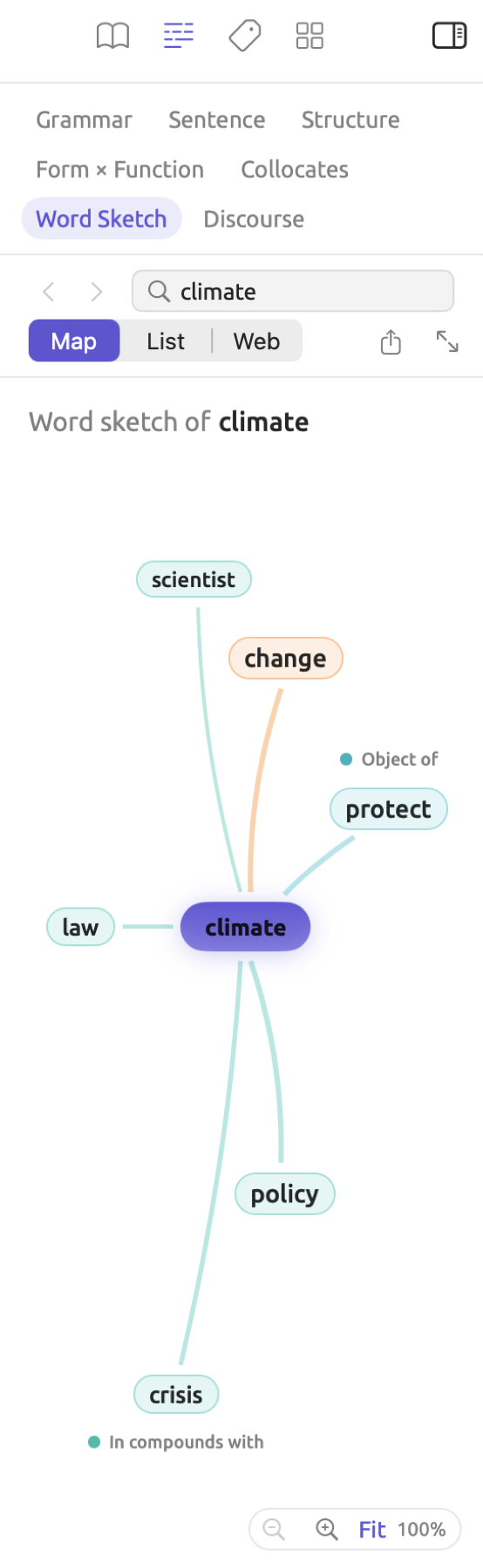
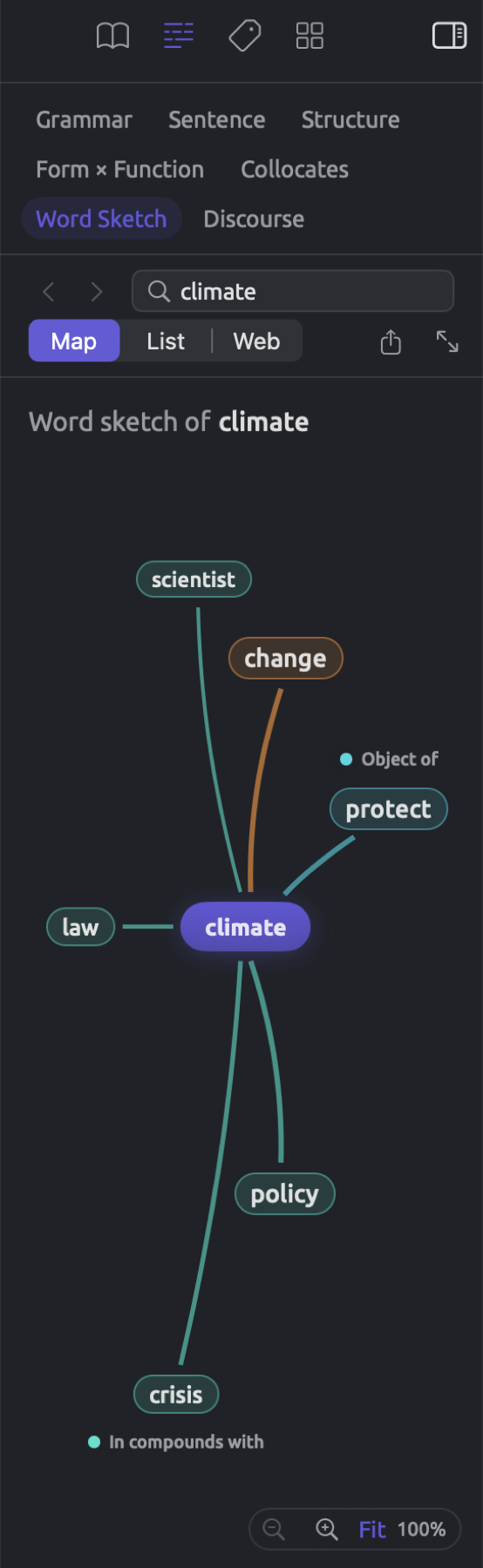
To sketch a word in a document:
- Open the document and choose View ▸ Inspector ▸ Grammar (⌥⌘2).
- Click Word Sketch in the row of facets at the top of the tab.
- Click a word in the reader.
The Word Sketch follows the reader, and whichever word gets clicked becomes the word that gets sketched. Selecting multiple words results in sketching the word that heads the rest grammatically. Selecting the climate crisis yields crisis.
To sketch a word before you find it within a document, enter it in the Word field and hit Return. Only the dictionary form is accepted in the field in the case of a document; bill will represent bills, for instance. The comparison does not consider capitalization.
The bar in the upper portion of the facet lists, from left to right:
- Back and Forward buttons (two arrow icons that move back to words that were previously sketched); you may refer to Going back and forward for more detail,
- Word field,
- Display options Map, List, and Web (they switch between displays),
- Export button (for more detail, refer to Exporting),
- Open in a window icon (two diagonal arrows icon), opening the same document and word in the Word Sketch window (details are discussed in The Word Sketch window).
After the bar comes Word sketch of, with the sketched word. The facet displays Sketch a Word prior to choosing a word in the document. Should the chosen word not engage in any of the twelve relations, the facet shows No grammatical partners found for this word.
The Code Sketch facet and Sketch Space facet also contain the bar mentioned earlier, with options for Map and List displays. The Code Sketch and Sketch Space facets update with the chosen word like the Word Sketch does too. The selected display applies to all word sketches, Code Sketches, and Sketch Spaces until changed again; while Web display is active, both Code Sketch and Sketch Space display maps.
Grammatical relations
The grammar analysis analyzes each word in every sentence by linking it to the word it depends on. For example, adjectives depend on nouns, subjects on verbs, and nouns following a preposition depend on the preposition itself. A word sketch summarizes all links of one particular word, grouping them into twelve relations.
While some relation types point downwards toward the dependencies, other relation types point upwards toward what the sketched word depends on. Hence, a single link appears twice in two different word sketches, once each according to the direction it points toward. Take the phrase “the climate changes,” for example. Climate appears in the sketch of change as one of the Subjects, whereas change appears under Subject of in the sketch of climate.
| Relation | What it lists | Example |
|---|---|---|
| Subjects | the subjects of a verb | heat in “the heat closed schools” (sketch of close) |
| Objects | the objects of a verb, indirect objects included | school in “the heat closed schools” (sketch of close) |
| Complements | words and clauses that complete a verb, such as the adjective after feel or the verb after want to | hopeful in “to feel hopeful” (sketch of feel) |
| Subject of | the verbs the word is the subject of | warn in “Scientists warn” (sketch of scientist) |
| Object of | the verbs the word is the object of | close in “the heat closed schools” (sketch of school) |
| Adjective modifiers | adjectives that describe the word | terrible in “a terrible summer” (sketch of summer) |
| Adverb modifiers | adverbs that modify the word | together in “decide to act together” (sketch of act) |
| Modifies | the words this word modifies, as adjective or adverb | step in “the most urgent steps” (sketch of urgent) |
| In compounds with | nouns that form a compound with the word, before or after it | carbon in “carbon tax” and break in “tax breaks” (sketch of tax) |
| Prepositional phrases | phrases attached to the word, shown as preposition and noun | on fuel in “a carbon tax on fuel” (sketch of tax) |
| Coordinated with | words joined to it by and, or, and similar words | flood in “fires and floods” (sketch of fire) |
| Complement of | the words this word completes | feel in “to feel hopeful” (sketch of hopeful) |
The sketch provides a description of the relations the word participates in, following the order provided by the table above. One-line definitions are available in Help ▸ Glossary under Word sketches.
Four factors influence what will be included in the sketch:
- If a word is the subject of a passive verb construction, it counts as a subject. E.g., in “Those bills were paid too,” pay will appear under Subject of in the sketch of bill.
- In Prepositional phrases, the partner is always presented along with the preposition. On fuel and for fuel are two distinct partners.
- Partners are distinguished based on their word classes. When the grammar analysis assigns the same partner both as a noun and a verb in various constructions, the partner can appear twice in one relation. The CSV export specifies the word class of each partner (Exporting).
- The grammar analysis fails occasionally, most often with false starts, enumeration, and incomplete sentences in transcriptions of spoken language; thus, occasionally, incorrect partners can be attached to the analyzed word. Reviewing the sentences containing a suspicious partner usually reveals whether the attachment is indeed erroneous.
Sketches of German and Chinese words use twelve relations similarly, though there are several exceptions:
- Since compound words in German are almost always written as one unit (e.g., Klimapolitik), In compounds with remains empty for German-language documents.
- The German grammar analysis considers the preposition the head of the preposition phrase. Even so, a German sketch displays this phrase under Prepositional phrases, and the order of its elements is identical to English; the preposition precedes its noun. Additionally, the bare preposition can function as a partner in several roles, under Adverb modifiers of the verb the phrase belongs to (mit in the sketch of leben), under Adjective modifiers of a noun it follows, and under Modifies in the sketch of the noun in the phrase (mit in the sketch of Ergebnis).
- The German grammar analysis links subjects to the finite verb. In “Die Wissenschaft hat ihre Arbeit eindeutig erledigt,” Wissenschaft is considered the subject of the auxiliary verb haben, not of the main verb erledigen. Therefore, auxiliaries and modal verbs such as haben, werden, and müssen can be seen frequently in Subject of.
- In German, Adjective modifiers contains not only adjectives but also nouns, proper names, numbers, genitive attributes (Klimapolitik in “den Ergebnissen der heutigen Klimapolitik”), and appositions. Similarly, in Chinese, Adjective modifiers contains nouns and pronouns functioning as modifiers, often followed by the particle 的 (学校 in 学校的屋顶). The Chinese grammar analysis links a preposition to the noun that follows it. Chinese prepositional phrases show the preposition before its noun.
The map
Word sketches can be visualized in LemmaLoom with the Map display. The sketched word appears at the center of the display in the accent color, with its partners surrounding it.
- In your word sketch, partners appear grouped together according to their relation. Relations are sorted clockwise starting at the top of the map following the order in the table above, and each relation occupies an amount of space proportional to how many partners it shows.
- Each relation has its own unique color shared by its partners and the lines connecting them to the sketched word. Small labels with colored dots are used to name relations near their respective partners whenever possible.
- Within a single relation, the partner possessing the highest logDice score has the largest font size and boldest line weight compared to others.
- Hovering the mouse pointer over a partner shows its frequency and score, for example f=4 · logDice 11.83. All other partners temporarily fade during this time.
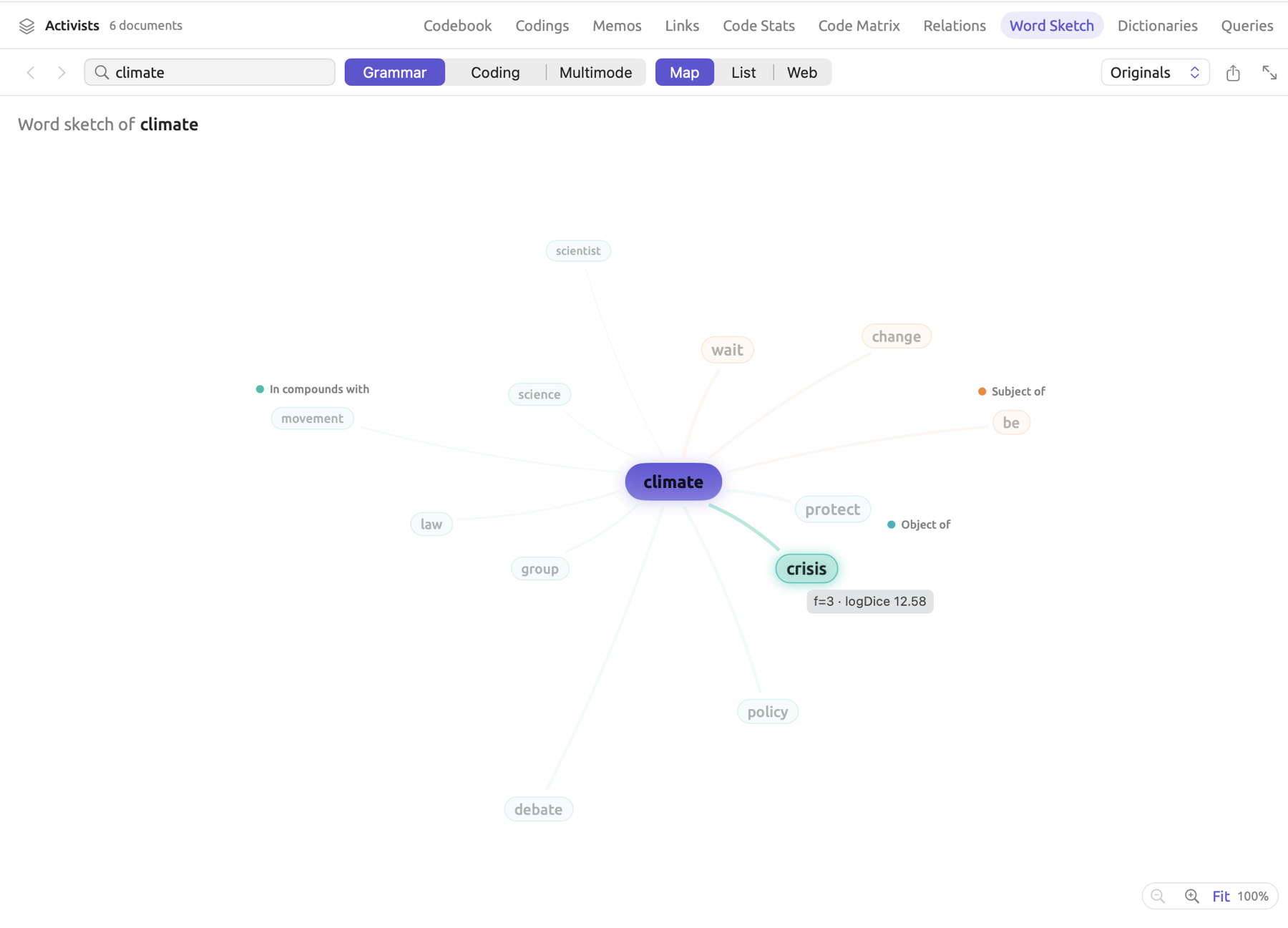
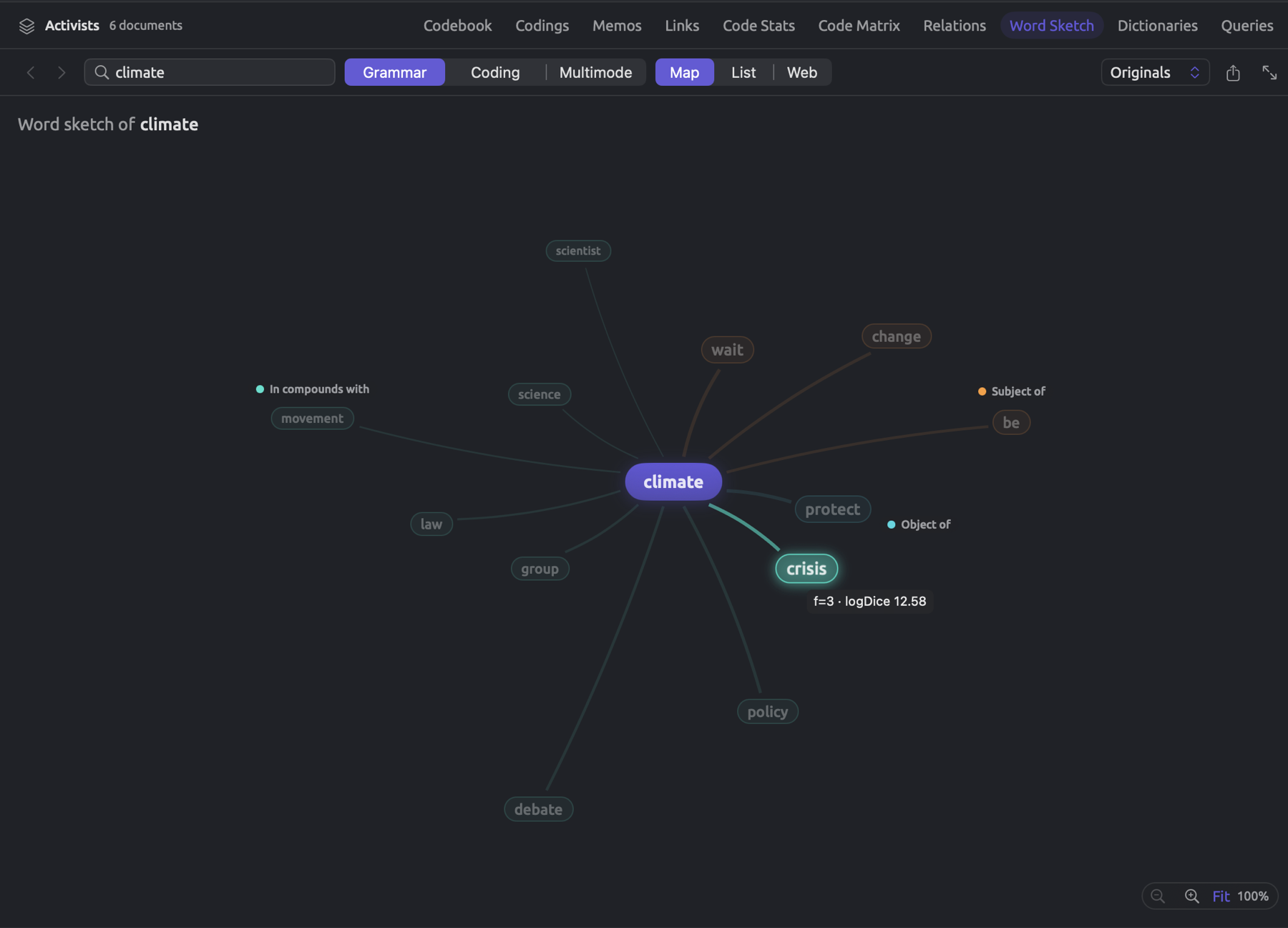
The exact number of partners shown per word sketch is dependent upon available space. At least two but not exceeding eight partners can be shown per relation, and partners likely to cause overlapping will be omitted from the display. When your inspector width is restricted, you may only see the two or three strongest partners per relation at once, but widening your inspector, switching to List, or opening the word sketch in the Word Sketch window provides you with access to additional detail.
The map allows clicking a partner to sketch it. Alternatively, right-clicking a partner offers the option to either Sketch this word (equivalent of a click) or Show in context, which shows the partner in the text (see Showing partners in the text).
A zoom bar is provided at the lower-right side of the map that allows you to Zoom out, Zoom in, and Fit, and shows the current zoom in percent. On trackpads, pinching performs the zoom action, while double-tapping with two fingers switches between the fitted view and twice the size. Holding down ⌘ enables zooming by scrolling as well. Once zoomed in, use drag or scrolling actions to pan around the zoomed image. Zoom-in is maxed out at fourfold.
The list
The List display displays the exact same sketch as lists, with separate sections for each relation according to how they are arranged in the table. The sections display the color, name, and total number of partners included in each section. Within each row are displayed the partner itself, frequency, and logDice measure up to two decimal places.
Rows are ranked by logDice score with descending ranking order; rows having equal logDice scores are then ranked by frequencies. A section lists up to 12 partners.
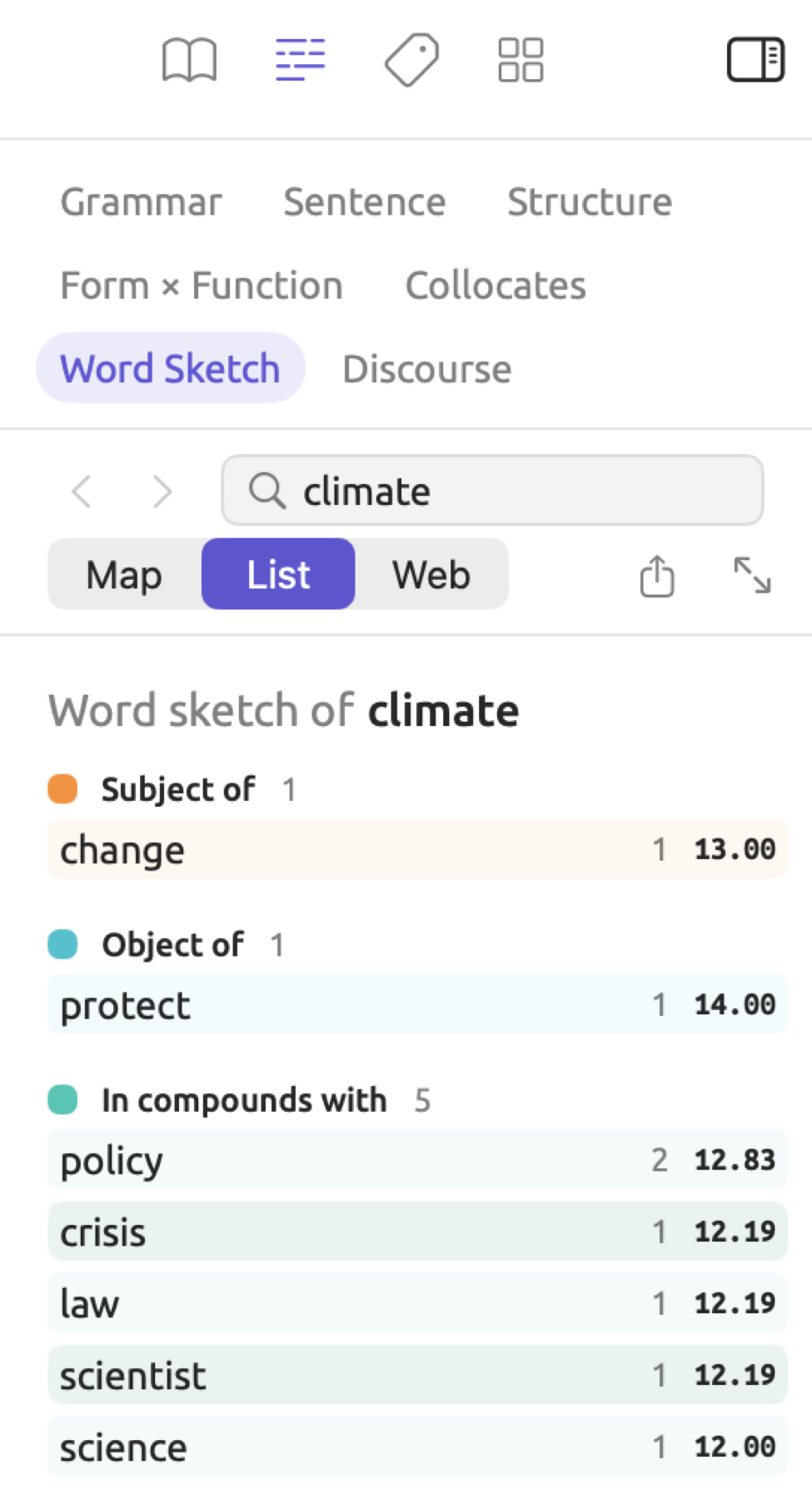
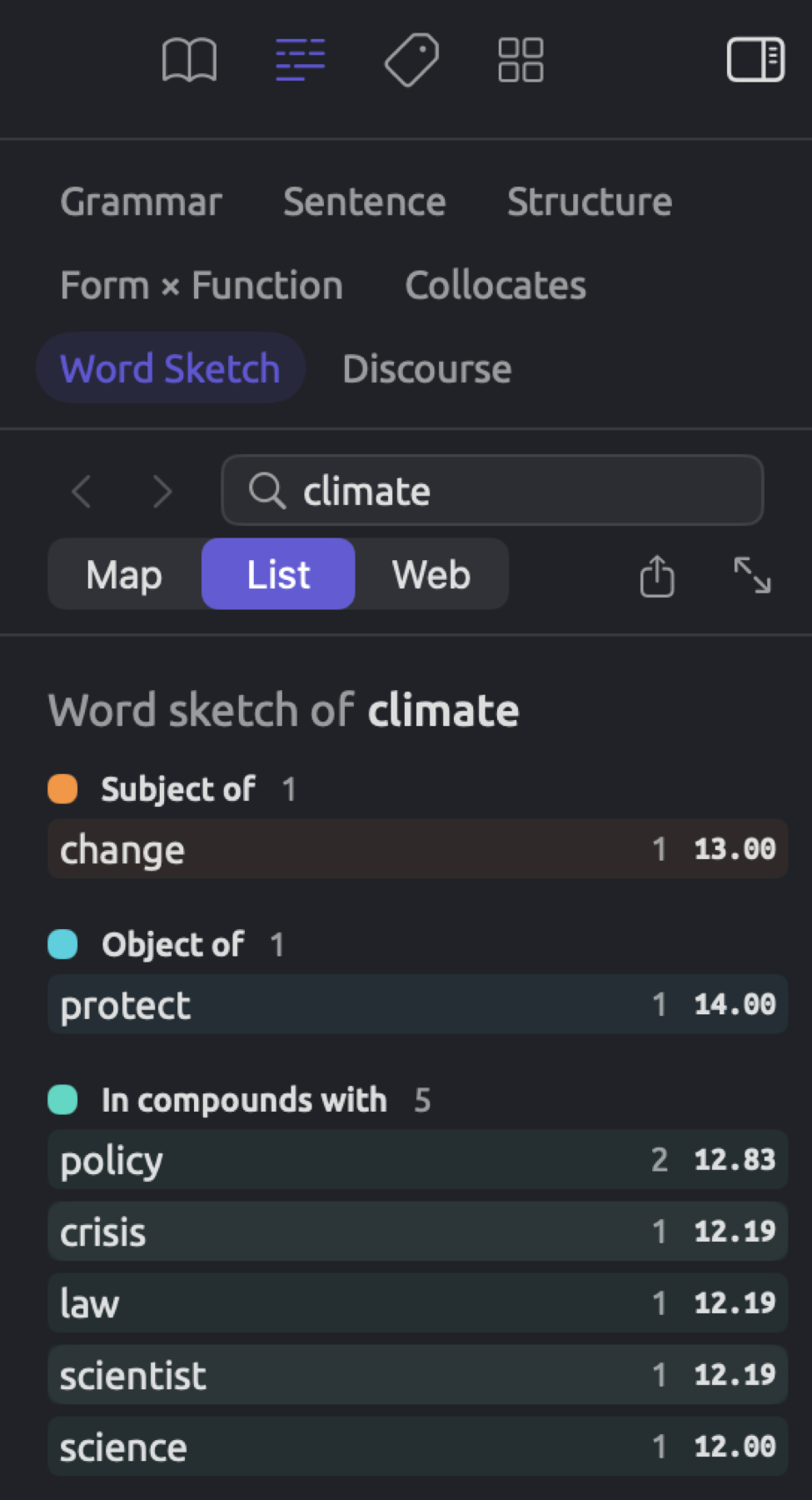
On the list, click functions operate opposite to how they function on the map. By clicking on the row in question, you bring up the partner in the text (see Showing partners in the text). Right-click it and select Sketch this word to sketch the partner.
The web
Web, being the third display, adds the partners’ partners. This reveals the relationship of the words around the sketched word with one another. Web display is exclusive to Grammar. It has two stages:
- The sketched word gets its six strongest partners by logDice, taken across all relations.
- Each of those gets its own six strongest partners.
The prepositional phrase’s noun gets turned into the web node, so on fuel and fuel are one node, labeled the way the web first reached it. Any word that was already placed will appear once, with one line to every word that counts it among its six.
The web diagram displays concentric rings containing the sketched word in the middle, surrounded by its partners on the first ring, followed by their own partners on the outer ring. Colors represent relations like those in the map, and lines’ thickness represents logDice.
To keep track of nodes within the web structure, hover the mouse pointer over a node. That node and its partners stay bright while all other nodes fade, and its tooltip indicates the logDice of the line that brought this node into the web. Where nodes crowd each other, those near the mouse pointer move apart so that you can read them.
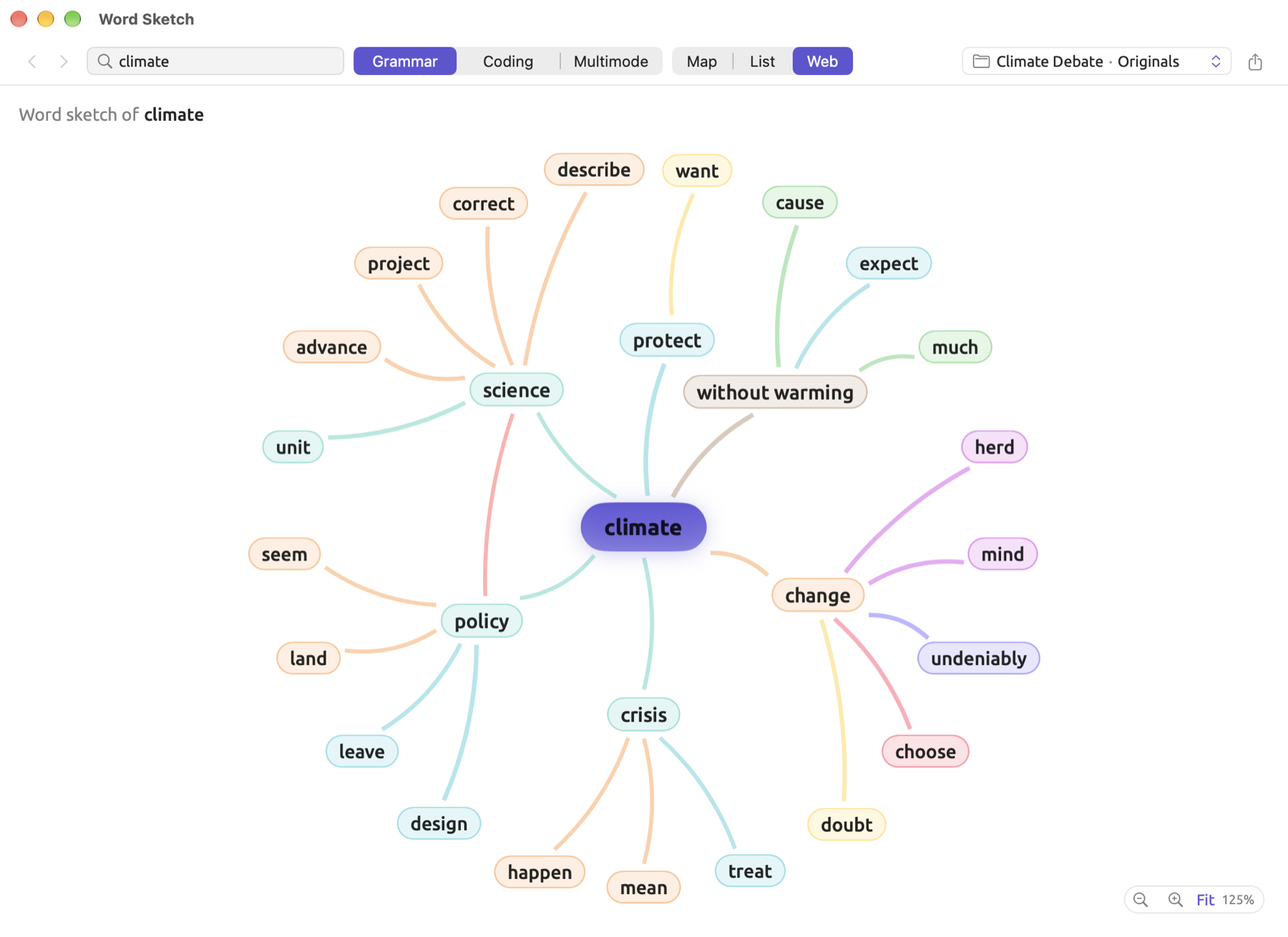
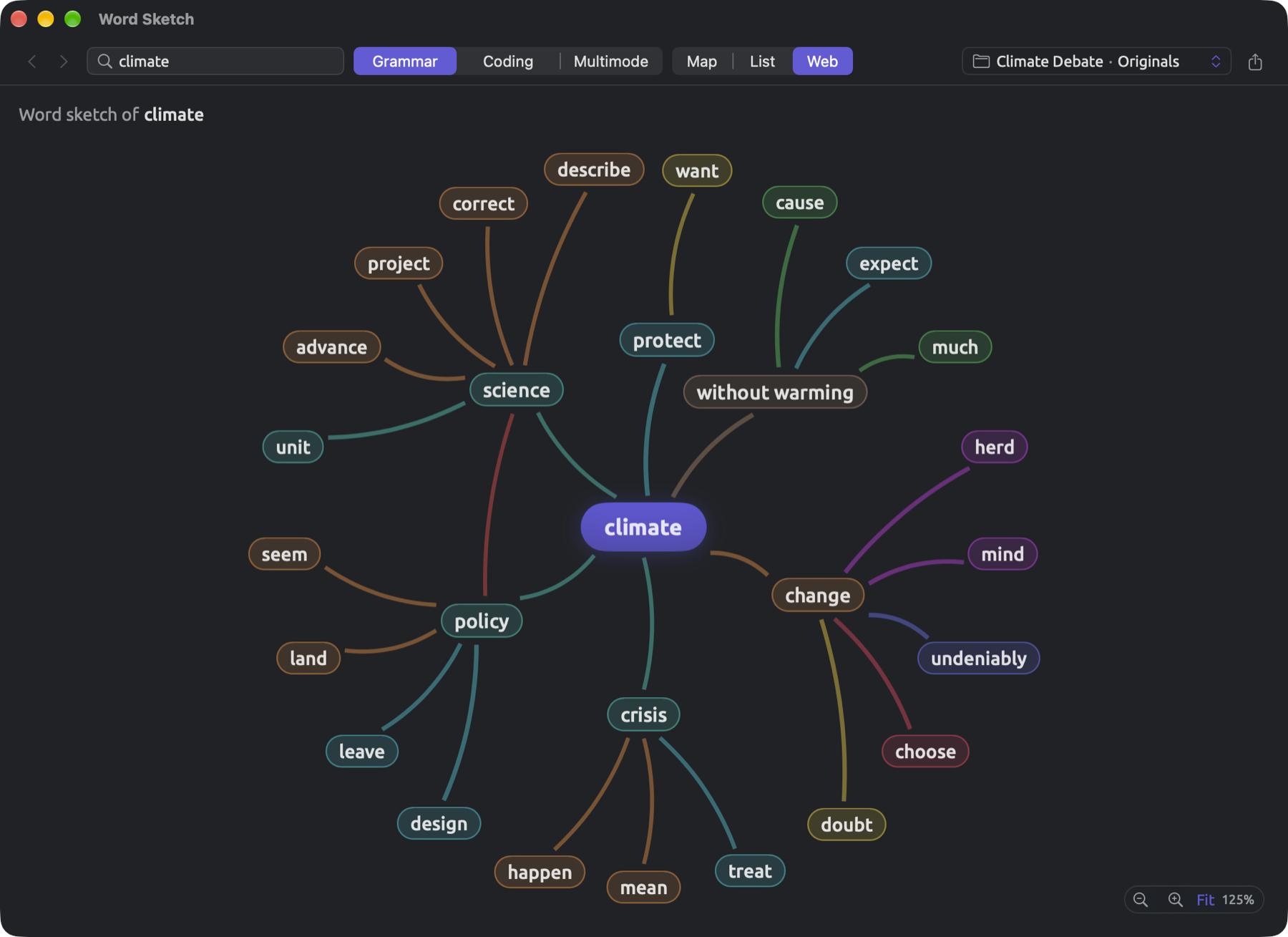
When science is among the strongest partners of climate, the outer ring of the web may show what the authors say science does through verbs whose subjects are science. Examples include describe and project.
In order to create a word sketch, click any word on the web, and the web of that word takes its place. When clicking Show in context on a word within the web, LemmaLoom searches for occurrences next to the selected sketched word; in the Word Sketch view and window, this works for the words linked to the sketched word itself. Within the inspector, however, it selects the word’s first occurrence.
The web can be zoomed from a quarter of its size up to six times its size. Given the time it takes to generate a web in a large set, a spinning icon displays in its place until generation has completed. Stopping the process occurs when Map or List has been chosen instead.
Going back and forward
The navigation history feature allows LemmaLoom to keep track of the path you took while navigating through your word sketches. Navigation history in Word sketch of above the sketch would look something like climate › science › describe, where the current word is shown last. Clicking on any previous words takes you back to them.


All sketched words, regardless of whether they are input via typing, clicking on partners, choosing candidate words according to dictionary category, or, in the inspector, selecting within the reader, will be added onto the navigation path. Navigation with Back or Forward follows that exact same path (as if moving around within a browsing history of a web browser). When navigating backwards and sketching a new word, the word(s) you went back past will automatically be replaced by the newly sketched word.
There are several commands listed under View ▸ Word Sketch, each command having its own dedicated keyboard shortcut.
- Back (⌘[) and Forward (⌘])
- Focus Word Field (⌘L)
- Grammar, Coding, and Multimode (⌘1, ⌘2, and ⌘3)
Within the inspector, the commands Grammar, Coding, and Multimode will switch to Word Sketch, Code Sketch, and Sketch Space, respectively, in the Grammar, Coding, and Multimode tabs.
In terms of navigation, within the inspector, the three facets of the document will maintain one path, meaning if you navigate to a particular word in Word Sketch, Code Sketch, or Sketch Space, that exact word will appear within each of the other two facets.
Scores
Each pair has a frequency and logDice value. Frequency indicates the number of times both words are linked, while logDice indicates their relationship strength.
Frequency
The frequency of a partner refers to the number of occurrences where your grammar analysis identified the occurrence of the partner word in connection with the sketched word in the given relation. Consider the example project “Climate Debate”. Suppose the texts contain the phrase climate crisis four times. In this case, the frequency f=4 of the word crisis within In compounds with in the sketch of the word climate will show up.
However, frequency alone isn’t sufficient to tell what’s typical of a word. Ranking partners purely by frequency will give a list headed by common words like new. This is because high-frequency partners are connected with pretty much any other word imaginable (new roads, new licenses, new deadlines, new bridges, and so forth). Word sketches rank partners by their logDice score, taking account of the frequency of each word individually.
logDice
logDice is based on the frequency of appearance of the pair divided by the sum of frequencies of both words taken separately (a quantified measure of collocation). This computation makes use of three values:
- , the number of times the pair is linked, denoted by f
- , the frequency of appearance of the sketched word within the relation, with any partner
- , the frequency that the other word in the relation appears in the scope without considering pairing
Each inflectional form of a word contributes toward its lemma, and word classes are tracked independently. Therefore, when the partner is the noun plan, only its uses as a noun count toward .
The Dice coefficient was named after ecologist Lee R. Dice and measures the frequency of the pair relative to the sum of the above two values:
If the three counts were to be identical, the Dice coefficient would equal 1, meaning that the word takes part exclusively in that pairing and the partner occurs nowhere else. Low values suggest few occurrences of the pair compared to the two counts combined. Due to there being two values added together in the denominator of Dice, the multiplication factor 2 compensates for this fact.
Comparing Dice coefficient scores visually presents a difficulty due to their being ratios; thus, values 0.02 and 0.04 differ by a factor of two but look nearly similar numerically. This is where the logDice transformation helps convert ratios onto a logarithmic scale where each increment corresponds to a doubling of the preceding value:
The base 2 logarithm () measures how many times the doubling should occur before reaching a certain number. Thus, because 2 × 2 × 2 = 8. In the range 0 < x < 1, logarithms are negative, representing halving operations; while . Should the button be missing on your calculator, compute the quotient of natural logarithms .
Therefore, a partner receiving one fewer logDice point than another will have a Dice coefficient half that partner’s. The constant 14 offsets logDice points so that 14 is the highest possible score in scenarios with Dice equal to 1. In order to fall under 0 logDice points, the Dice coefficient needs to be smaller than 1 divided by 16,384 (), an event uncommon in a project of opinion pieces and columns.
An example
For example, assume “Climate Debate” uses climate in compounds with a second noun 28 times total, which means each partner’s under the relation In compounds with. While invented for the purpose of demonstration, the numbers represent realistic values relative to the example project. Policy compounds with climate 4 times out of 8 occurrences total in the project.
Since 0.222 lies between 0.125 and 0.25, the binary logarithm of the number lies between −3 and −2. Specifically, . Thus,
With this logDice score, the tooltip on the map reads f=4 · logDice 11.83. Below, there are three additional examples of partners:
| Partner | f () | Occurrences of the partner () | Dice | logDice |
|---|---|---|---|---|
| crisis | 4 | 4 | 8/32 = 0.250 | 12.00 |
| policy | 4 | 8 | 8/36 ≈ 0.222 | 11.83 |
| science | 4 | 12 | 8/40 = 0.200 | 11.68 |
| denier | 1 | 1 | 2/29 ≈ 0.069 | 10.14 |
The words crisis, policy, and science all form compounds with climate four times apiece. Yet their rankings will differ from one another. Every crisis in the project is a climate crisis; hence, crisis ranks first. Of the eight uses of policy, half are climate policies. Twelve instances of science appear, predominantly unmodified (science and the science). Thus, science finishes behind crisis and policy, while denier, seen only once and only in climate denier, ranks lowest of the four.
In cases where two partner words tie for equal frequency with the sketched word, whichever word is less frequent elsewhere scores higher.
logDice and mutual information
While the Collocates facet of the Grammar tab and collocate lists generated via queries offer other measures, among them mutual information (MI) and log-likelihood (see Chapter 11, The Grammar Inspector and Chapter 16, Query Results and Statistics), the partners in word sketches are ranked using logDice exclusively, as MI gives preference to rare partners while depending on the text length.
MI measures the ratio between the actual frequency and the expectation based on chance occurrences. If is the length of the text measured in number of tokens (both words and punctuation), then out of these tokens, tokens are the partner. Therefore, a random link to any token will end up pointing to the partner with probability . Given the sketched word’s links, will be the expected amount of occurrences, which equals the expected frequency in The association measures of Chapter 11, The Grammar Inspector. This gives the following equations:
Here MI is calculated in doublings and therefore equals 3 for instances eight times more frequent than expected by chance.
Take a project containing 10,000 tokens (roughly 9,000 words plus punctuation), and the result is for policy and , giving MI . Similarly, and , resulting in MI for denier, which occurs only once in the sketch.
MI thus ranks denier above policy. The effect comes from the small expected frequency, which turns the single instance of denier into a huge surprise. In comparison, logDice places policy ahead of denier as a single instance does not constitute a substantial share of 28 links.
It should also be noted that MI relies heavily on ; with the same counts, all MI values in a project twice as long would be increased by one due to halved expected frequencies. Since is nowhere to be found in the logDice calculation formula, a project of greater length will neither increase nor decrease logDice without other modifications. Scores still change with the scope, because and do (see Word sketches for sets, tags, and the project).
Code Sketch
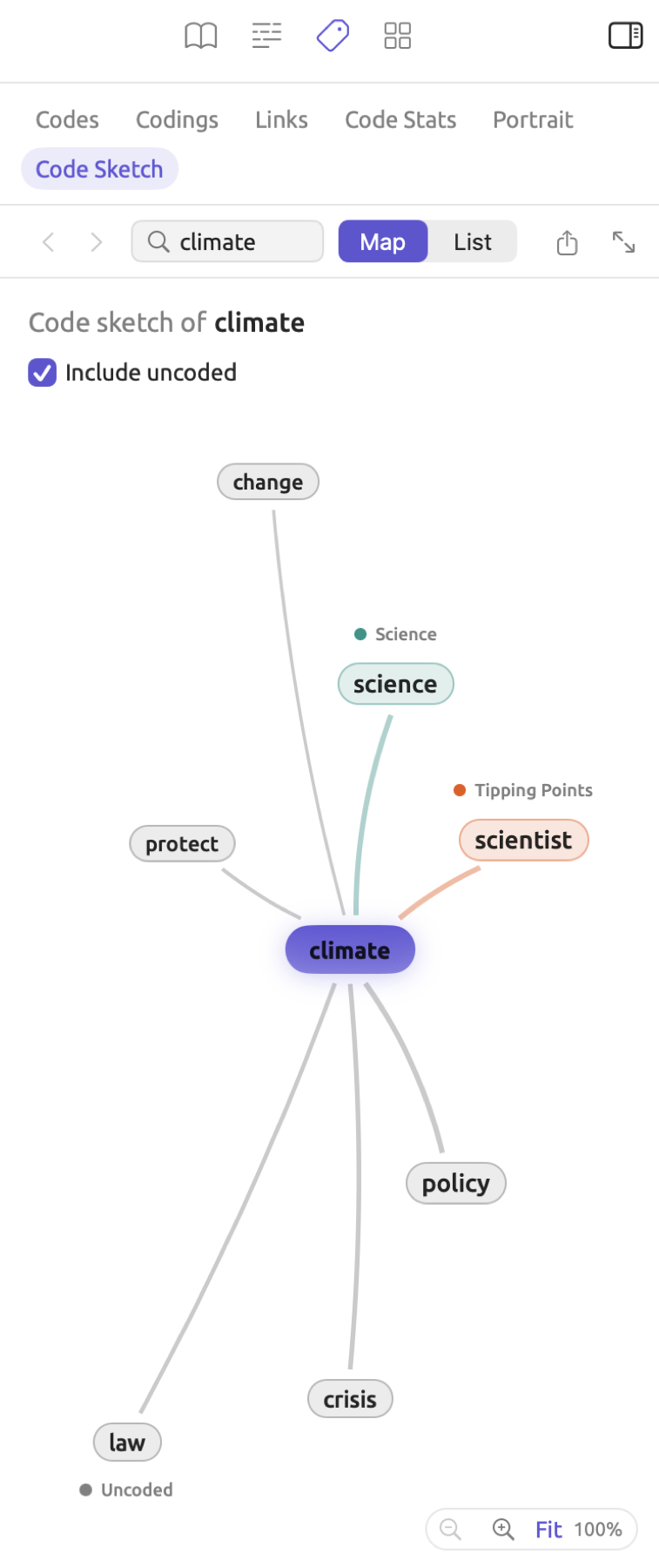
Code Sketches partition partners according to codes rather than relations; that is, they partition partners according to the codes that cover your word where it occurs. If you hypothesize that your word associates with different groups of partners based on what topic a passage covers, then you could use Code Sketches to explore that hypothesis in your documents. In “Running Out of Time”, for example, a Code Sketch shows the partners of climate in passages coded “Science” and in those coded “Tipping Points”.
To make a Code Sketch of a document:
- Open the document and choose View ▸ Inspector ▸ Coding (⌥⌘3).
- Click Code Sketch in the row of facets at the top of the tab.
- Click a word in the reader, or type its dictionary form in the Word field and press Return.
Like in the word sketch, the map and the list show codes in place of relations, where each code has its own group and color, and the Uncoded group gathers, in gray, the partners of all occurrences not captured in any code passage. Codes are ranked according to how many links of the word lie in their passages, with the highest numbers being first. The Uncoded group comes at the end.
- Include uncoded, which follows Code sketch of and the word below the bar, starts selected, meaning occurrences with no coding are included. Deselect it if you do not want any occurrences without coding in the sketch.
- Occurrences of the word belong to a code when the code covers any part of them. Occurrences that fall inside passages with more than one code are counted under each code involved. For instance, if in “Running Out of Time” there is a phrase “a cliff edge in thick fog” lying in passages coded “Fear” and “Tipping Points”, then your Code Sketch of fog will have thick in the groups “Fear” and “Tipping Points”.
- Each code counts only its own codings. If you separately coded certain passages for “Urgency” and others for its subcode “Tipping Points”, then these two become separate groups.
- Coded memos count as codings. Occurrences falling in passages coded via a memo are considered occurrences coded directly with the memo’s code.
- Should your document contain no codings at all, all occurrences will be put under the Uncoded group and produce the equivalent of the word sketch with all relations pooled. Should Include uncoded be deselected, however, this will produce No Partners.
For each code group individually, a partner’s frequency reflects the number of links between the partner and the word in all the relations in which they participate. Thus, should the word climate occur as the object of protect in some sentences and be linked to it in another fashion in others, the word protect is listed only once. Prepositions in Prepositional phrases stay with their nouns; for example, the partner occurs as on fuel.
The scoring algorithm for each partner within each code individually remains logDice, but it gets calculated independently per code group. The total number of the sketched word becomes its total number of links, of any kind, inside passages of the particular code. The partner’s count still refers to the whole document or the whole scope in a set or project. Thus, a common partner appearing in many locations scores lower under every code than one occurring mostly in the code’s passages.
As an example, if climate has 5 links within passages coded “Science” in some document, 2 of them to model, which itself occurs 8 times in the document altogether, Dice , hence logDice .
Clicking and right-clicking behave similarly to the word sketch, and partners sketched join the path above. Within the inspector, the action Open in a window opens the Word Sketch window on the document in Coding mode. Comparing relations across codes requires you to use Sketch Space instead (see Chapter 14, Sketch Space).
Word sketches for sets, tags, and the project
Word sketches are generated for a set, tag, or project as a whole. The totals , , and will be aggregated across all of the documents prior to calculating the score. Word sketches of the same word in two distinct scopes illustrate differences between authors, as seen with the sets “Activists” and “Skeptics”.
Opening the Word Sketch view
The set “Activists” of “Climate Debate” holds the activist texts; thus, its word sketch of climate tells you how they use the word.
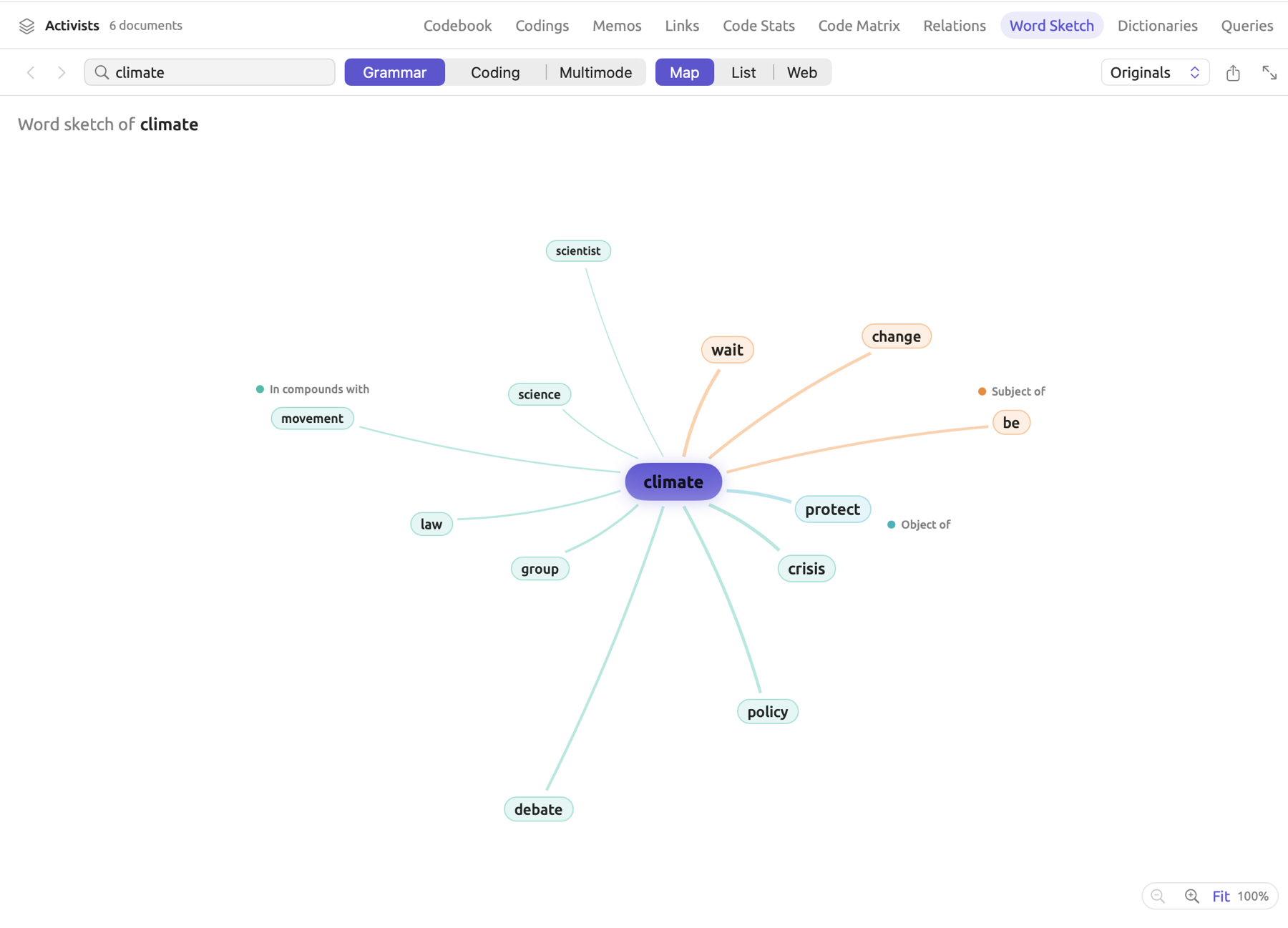
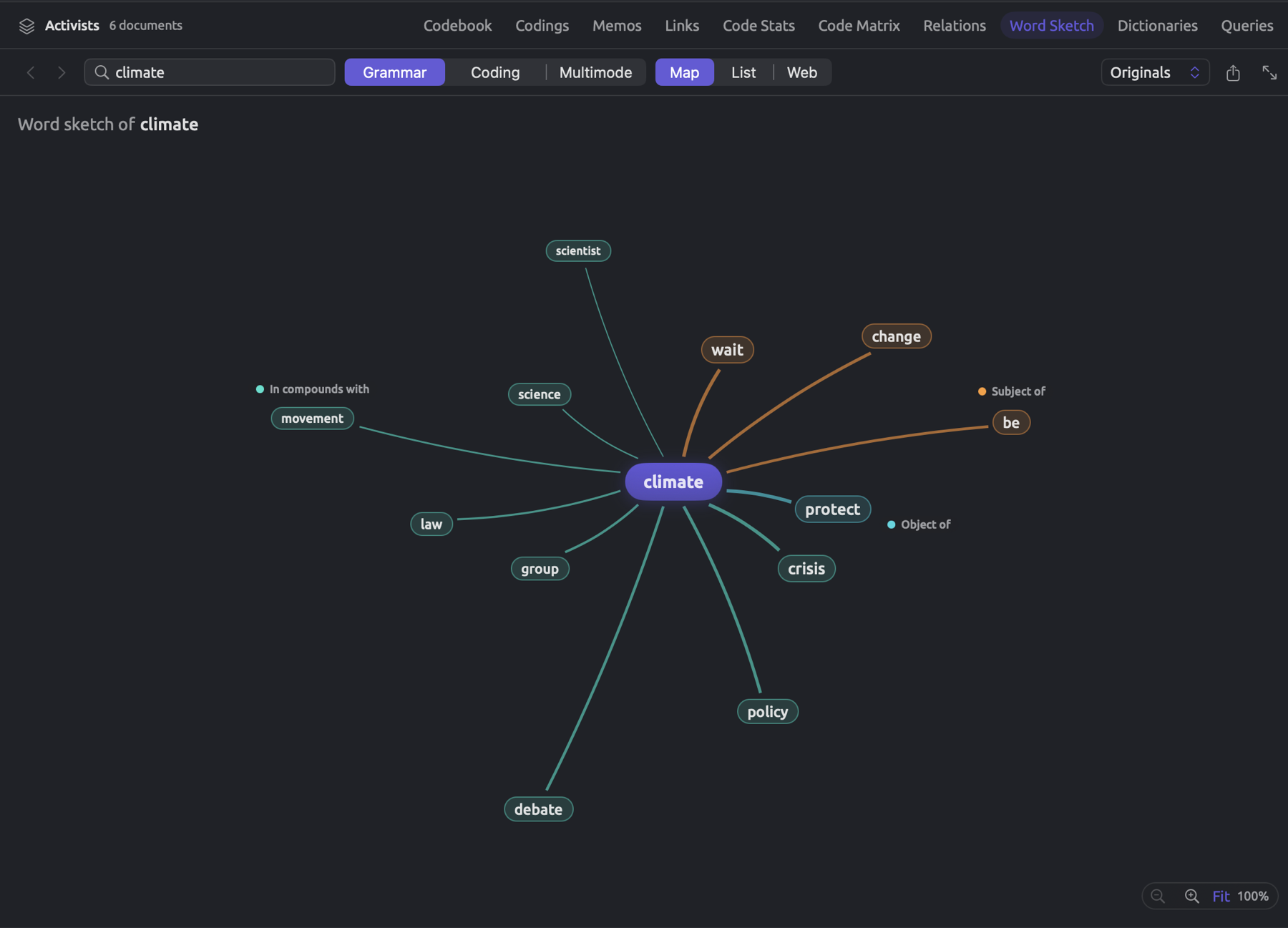
To open the Word Sketch view:
- For the whole project, click Word Sketch under Project in the sidebar. For a set or a tag, click it in the sidebar, then click Word Sketch among the buttons in its tab.
- Type a word in the Word field and press Return.
- Choose Grammar, Coding, or Multimode in the bar.
Your very first opening of a sketch for a scope will involve preparing the grammar of each document in the scope. This is signified by Preparing, a progress ring, and the number of documents prepared out of all total documents, e.g., 4 of 6. Subsequent openings of sketches within the same scope commence immediately. Editing a particular document requires only that particular document to undergo preparation, thus making Preparing appear as smaller text in the bar.
The bar remains consistent throughout modes. In the project’s Word Sketch section, it begins with the title, followed by the various modes and Map, List, and Web. On the right are Back, Forward, the Word field, a menu of translations when the scope has any (see Sketching translations below), the export button, and Open in a window. The arrows and the Word field come first in a set or a tag and in the Word Sketch window. Following those items are the remaining ones, in the same order.
In Coding and Multimode, Web is disabled, with a tooltip stating Web is not available in this mode.
Beneath the bar is either Word sketch of or Code sketch of, depending on whether a word sketch or Code Sketch is being generated, showing the path of what you’ve sketched so far (see Going back and forward). Include uncoded, which includes occurrences with no coding, shows beneath it in Coding mode, and Include document codes shows beside it when the scope contains document codes. Chapter 14, Sketch Space explains the additional controls for Multimode.
The Word field
In the view, the Word field accepts any word form. If you input scientists, you will get back scientist; likewise, warned returns warn. A phrase is sketched under the word which most often heads it in the text in your scope, so climate crisis returns crisis. If you enter text written in Chinese without spaces, the system splits it into words occurring in your scope before processing it the same way. For a non-occurring word, the view states No grammatical partners found for this word.
Upon hitting Return on your keyboard, the Word field changes to the sketched word, meaning that scientists becomes scientist and climate crisis becomes crisis. This word applies to all three modes and stays when you switch between them. After you sketch a partner, the inputted word remains in your Word field while the partner becomes part of the path above the sketch.
What a scope sketch includes
- Documents must be original. If a set has translated documents, the sketch uses the original documents instead. If you want a translation sketch, pick your desired translation language from Corpus (see Sketching translations below).
- Documents must be indexed. When some documents lack indexing, a note at the bottom, such as 13 of 14 documents indexed, says how many indexed documents are included. When none of the documents have been indexed, you get a note saying Grammar becomes available when indexing completes.
- Any frequency of partners. In contrast with Sketch Space, Grammar and Coding will include even partners seen only once. In a large scope, however, a particularly rare partner may go unscored.
This view automatically refreshes whenever a document text is edited, coding applied, or a new code created.
Document codes
A code can belong to a single document (see Chapter 7, Coding). When it does, the document title follows the code name, in parentheses, in Code Sketches and Multimode analyses of sets or projects. In the project “Climate Debate”, the speaker codes belong to the document “Radio Debate”. As such, the code “Skeptic” becomes “Skeptic (Radio Debate)”. Long titles are shortened to the distinguishing portion of the title, with an ellipsis (…) for what is left out.
If there happen to be document codes within the scope being analyzed, an Include document codes checkbox appears next to Include uncoded. It is selected initially. Deselect it if only codes that apply across documents need be considered in analyzing occurrence counts; the occurrences that document codes cover then count under any other code on the passage, or under Uncoded.
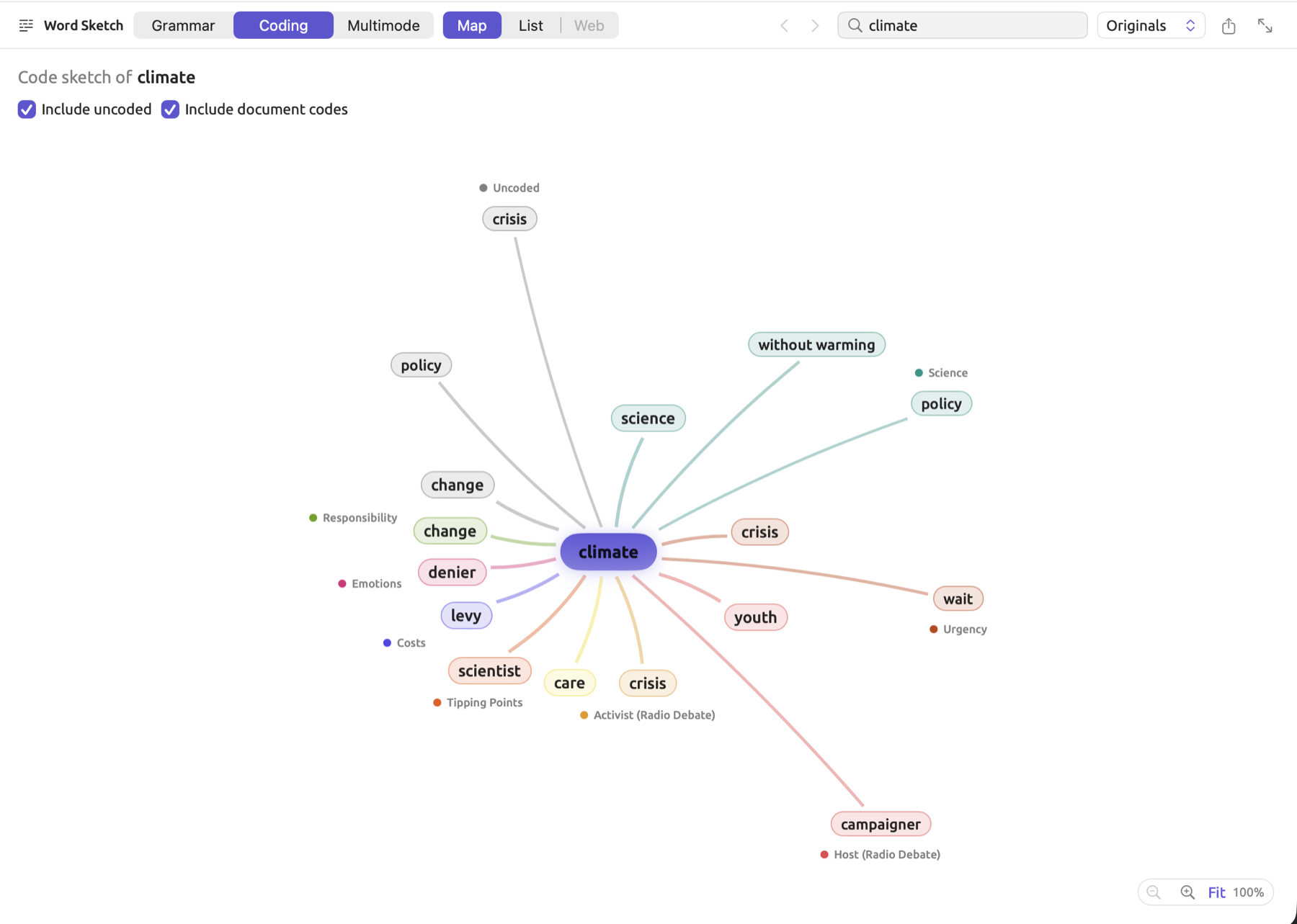
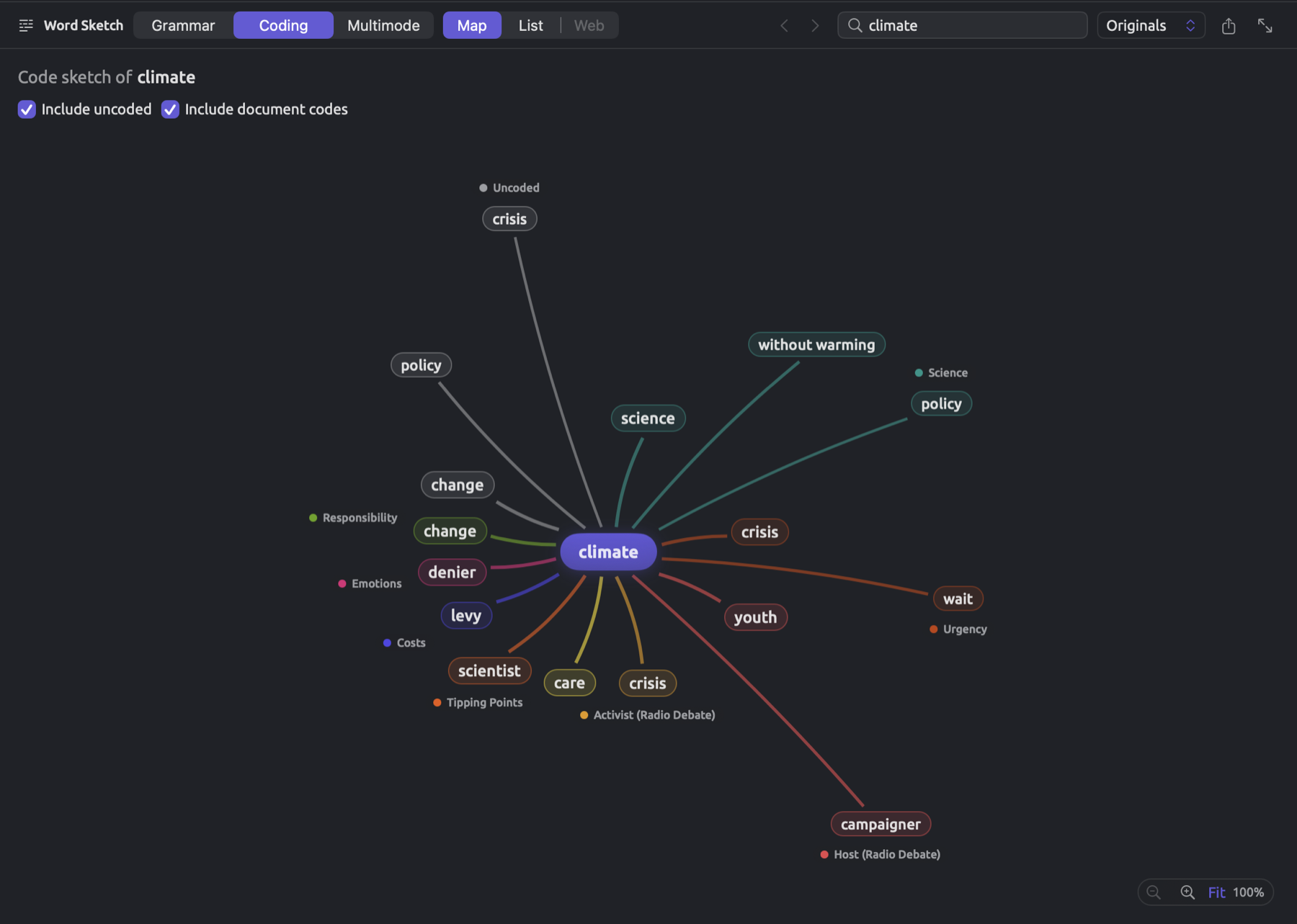
Sketching translations
When your scope contains documents translated into English, German, or Chinese, a menu appears in the bar, with a tooltip labeling it Source and at first showing a selection labeled Originals. Under Corpus, this menu has entries labeled Originals, as well as one for each translation language, such as Translations (German), because the word sketch operates on one language at a time.
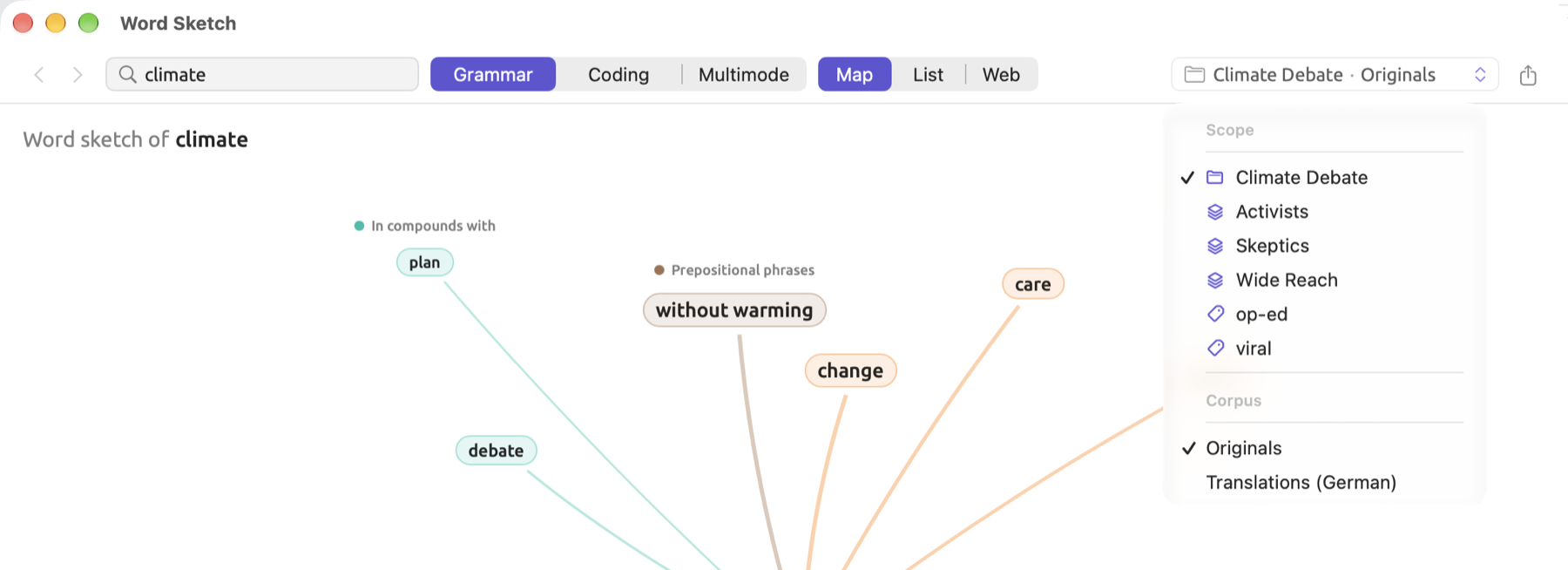
Choose a language to generate a word sketch of translations exclusively into that language. Normally, this option would be used when your documents’ languages are different from English, German, or Chinese. In the “Climate Debate” project, for example, Translations (German) contains only one translation, “Running Out of Time (German)”. When choosing a language for translation purposes, type the word in that language, e.g., Klima rather than climate. Changing your corpus will prepare your documents again.
Codings done on an original appear in its translations (see Chapter 9, Translations and Split View). Thus, Coding and Multimode are capable of working on a translation corpus.
The Word Sketch window
The Word Sketch window displays the exact same thing as the Word Sketch view does, except in a separate window that you can keep beside the reader. The tab and window will contain one shared sketch per scope selected. Thus, the same word, path, mode, corpus, checkboxes, and candidate words used in either the view or the window remain consistent between views. Type a word in the window, and it will appear in the corresponding Word Sketch view of the set.
Opening the window can be done in several ways:
- In the sidebar, right-click the project, a set, or a tag name, then choose Word Sketch.
- Within the Word Sketch view of the project, a set, or a tag, click the Open in a window button at the far right side of the bar. The same button is found in the Codebook window’s Word Sketch section.
- In the inspector’s Word Sketch, Code Sketch, or Sketch Space facet, click the Open in a window button to bring up the window on the current document, with the facet’s mode and word intact.
- On the Word Sketch tab of the project, or the tab of a set or tag showing Word Sketch, right-click the tab name and select Open in New Window (see Chapter 3, Projects and Documents).
The Word Sketch window maintains only one instance at any point in time. Thus clicking to show a Word Sketch window again will replace the old scope with a new one according to whichever scope is selected currently, and the window always reflects the active project in LemmaLoom.
The window’s menu with its tooltip label as Source contains controls to change the scope. Thus whatever scope is displayed in this window will show in the menu label alongside an indicator for the corpus whenever the scope has translations, e.g., “Climate Debate · Originals”. The Scope section lists the project (with a folder icon), sets alphabetically ordered, tags, and the active document in the reader, if there is one. In “Climate Debate”, these are the sets “Activists”, “Skeptics”, and “Wide Reach” and the tags “op-ed” and “viral”. For sketching the documents of the group “Print”, for instance, a smart set must be created based on a Group condition (see Groups in Chapter 8, Sets, Groups, Tags, and Attributes).
When you choose another scope, the window preserves the word, path, mode, corpus, and checkboxes used, allowing direct comparison between different scopes. Thus you can compare climate between “Activists” and “Skeptics” by changing the scope.
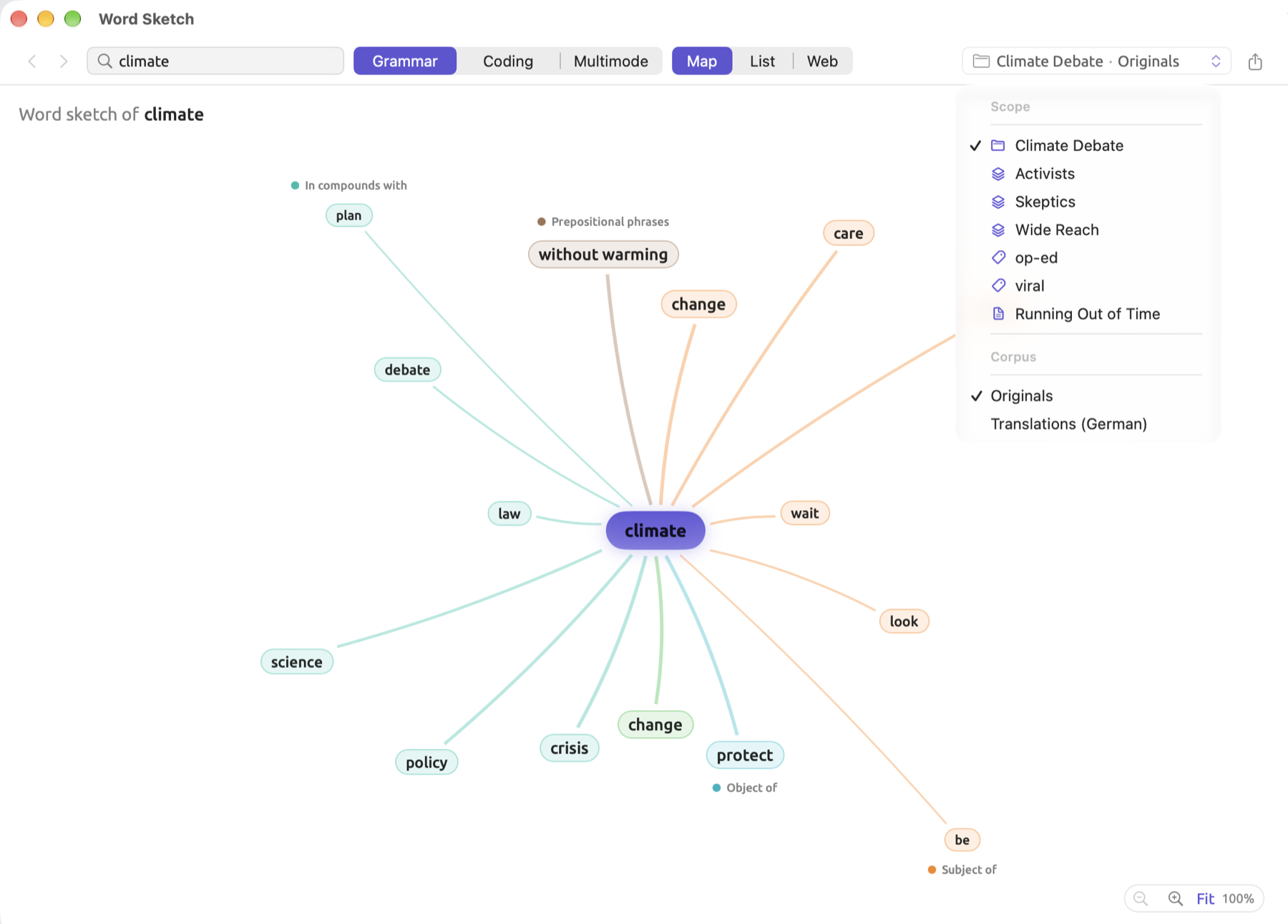
The document scope presents a sketch very similarly to the inspector except that there are three distinctions between them:
- The window keeps its word when you click in the reader;
- It allows entries in its Word field to take any form of words (refer to The Word field);
- And, finally, the option Show in context iterates over the locations at which both words are linked (refer to Showing partners in the text).
Starting from a dictionary category
A word sketch can start off from terms within a dictionary category so that you may go through each individually. Within the “Climate Debate” project, there is a “Hedges” dictionary which contains a category “Shields”, and its word sketch results will tell you what the writers hedge about.
To initiate a word sketch based on a category:
- Click Dictionaries under Project in the sidebar, or in the tab of a set.
- Select a dictionary.
- Right-click one of its categories and choose Word Sketch, which is disabled if the category contains no terms.
To begin your word sketch directly from a particular term, double-click the desired term among the category’s terms. Alternatively, you may select Sketch this word via right-clicking on the selected term. Choosing Open in Window from the same shortcut menu results in opening the sketch in the separate Word Sketch window.
The view then switches to Word Sketch for the same project or set and retains your previous mode. The word sketched will either be your chosen term or, after Word Sketch, the one which occurs in the scope most frequently. Beneath the bar, you will find the name of your category along with its color, and finally its candidate words. For “Shields”, for instance, candidates include think, perhaps, and maybe among others. Clicking the desired candidate will generate the sketch. The currently selected candidate word has highlighting.
Your terms get mapped onto the lemmas they contain when they appear in your scope, and phrases onto the word that heads them, meaning that both I think and I’d say map onto think and say respectively. All terms which reduce to the exact same word share a common candidate word. Hovering the mouse pointer over a candidate word reveals which terms map to this word.
Your list of candidate words gets sorted by occurrence frequency in your scope. Candidate words of a term never appearing in any form inside your scope appear at the end of the row, disabled, along with the tooltip Not found. Entering a word outside the candidate words into the Word field removes the whole row. For more information, see Word sketches from a category in Chapter 19, Dictionaries.
Multimode and the asterisk
Sketch Space is presented in Multimode for the scope. Word sketches are compared among the columns, which refer to the set of codes covering the word’s occurrences or the set/project-level values of an attribute, such as “Stance”. In a grid, each row represents a relation, while each column represents a code or value, and each cell counts the word’s links of that relation in that column. Maps highlight the strongest partners for each column. Under the inspector’s Multimode tab, the same comparison occurs on the level of one document. More information regarding the concept of Sketch Space can be found in Chapter 14, Sketch Space.
In the grid, an asterisk next to a counted number, explained by a line under the grid, signifies a characteristic relation. This means that a particular relation occurs clearly more often in a given column than in the rest of the scope. An asterisk appears in a cell only when all three criteria are fulfilled simultaneously, namely:
- the count must be greater than or equal to three, so one or two sentences will not qualify as characteristic;
- the count must exceed its expected count; and
- a one-sided Fisher’s exact test results in a p-value below 0.05.
An example
Say target had 12 grammatical links within the project, but all occurred within activist and skeptic texts, and you compare its counts across the values of “Stance”. The numbers here are invented for illustration:
| Relation | Activist | Skeptic | Whole project |
|---|---|---|---|
| Object of | 6 | · | 6 |
| Adjective modifiers | 1 | 3 | 4 |
| In compounds with | · | 1 | 1 |
| Prepositional phrases | 1 | · | 1 |
| All links | 8 | 4 | 12 |
A dot means zero occurrences. Totals are provided for both rows and columns as an illustration for this example. Target appears mostly as an object of set within the activists’ texts while the skeptics refer to national targets. “Activist” receives a * next to Object of whereas “Skeptic” does not receive any next to Adjective modifiers despite having three of its four links there.
Expected counts
Out of the total 12 links across the project, there are 6 links that are classified as Object of. That is exactly half of them. Given the number of links for activist documents (8), half of them, or 4, would fall into Object of classification if the activists used target the way the whole project does. Hence, the expected count is 4, which is what you’d expect if no difference existed between the column and the whole scope. There are actually 6 Object of links in “Activist”.
- is the expected count for a given cell.
- is the total number of links in the column under test (8 for “Activist”).
- is the total number of links of this kind within the entire scope (6 for Object of).
- is the total number of links for the particular word within the entire scope (12). Here it counts links, not tokens as in the formula for MI.
In the case of “Activist”, . For “Skeptic” with Adjective modifiers, . Both counts exceed their respective expected counts, and therefore proceed onto the test. Testing against the project-wide scope or against the rest of it results in the same statistical test, anyway.
The one-sided Fisher’s exact test
Fisher’s exact test is a measure of significance for whether chance variation could explain the results you see in the table. Six occurrences where four were expected might mean something, but with 12 links total, there are plenty of possibilities that arise simply due to randomness. The test calculates what proportion of possible tables would give “Activist” six or more Object of links.
Suppose you had twelve playing cards representing links. Six of them were marked with the label Object of, and you shuffled all of them prior to picking eight at random for “Activist”. Given no connection between “Stance” and how the word is employed, “Activist” will just draw a hand at random. You want to determine the likelihood that six or more of the eight cards bear the label Object of.
To do so, you first need to know how many distinct combinations of objects you can choose out of options regardless of order, which follows the formula:
This is pronounced “m choose j.” An exclamation point () after a number denotes its factorial, the multiplication of all integers starting with one up to this number; thus, . Of four cards, two can be picked in combinations.
There are
combinations of eight that you can extract from the twelve cards. The factors appear in both and , so they cancel out. For a hand with all six Object of cards, you choose all six, which gives one combination; to complete your hand, you choose two additional cards from the rest, which can be done in combinations. No hand can hold more than six Object of cards; thus, there will be 15 favorable outcomes out of the total 495:
The probability above constitutes a p-value. That is the chance that six or more links of this type occurred simply due to coincidence under the null hypothesis, which says that the column under consideration consists of randomly sampled word links. This is not the probability of the difference being real. An asterisk added by LemmaLoom implies that there is a less than 5 in 100 chance ( below 0.05) that such a count would arise in random hands. The 0.030 of “Activist” is within that limit; accordingly, LemmaLoom adds a * to its Object of count.
Of the twelve cards, “Skeptic” gets four; four of the twelve carry the label Adjective modifiers. In a fashion similar to before, there are total hands possible here. To find a hand holding exactly three Adjective modifiers, you take three of the four ( combinations) alongside a card from among the other eight (eight combinations). That makes 32 hands in total; additionally, there exists a hand including all four Adjective modifiers. Thus,
With the p-value exceeding 0.05, an asterisk is not added by LemmaLoom. While three out of four sounds impressive, this count appears nearly seven percent of the time with a random hand.
More generally, the p-value is the sum of the probabilities of every count equal to or greater than the observed count:
In detail:
- is the observed count of links within a cell ( for “Activist”, for “Skeptic”);
- adds up the fraction for each whole number from the value below the sign to the value above it;
- counts the combinations to pick items out of (number of links of this type);
- counts the ways to fill the remaining positions in the column () with other links;
- is the total number of combinations for a column of this size;
- refers to the smaller value between and . No column can hold more links than its own size or than there are links of this kind.
So with “Skeptic”, you sum the probability values when and ( and ).
This test is one-sided since it tests only for abnormally high numbers. If relations occur fewer times than anticipated, no asterisk is assigned to the relation. The activists’ single occurrence of Adjective modifiers receives no asterisk. It is an exact test because it counts every combination possible; thus, it is well suited for small numbers of observations. See Reading the asterisk in Chapter 14, Sketch Space for limitations regarding drawing inferences.
Every individual cell is tested separately. It means that having many cells can generate an accidental * on occasion. Columns with small numbers of occurrences seldom receive an asterisk.
Showing partners in the text
Going from a partner to its underlying sentences depends on where the sketch is displayed.
| Click a partner on the map | Show in context on the map | Click a row in the list | |
|---|---|---|---|
| Inspector, Word Sketch or Code Sketch | sketches the partner | first occurrence of the partner | first occurrence of the partner |
| Word Sketch view and window | sketches the partner | next place where the two are linked | next place where the two are linked |
Clicking Show in context or picking a row within the inspector will bring you to the first occurrence within the document of your partner word, regardless of whether it is near the word being sketched. Repeating this procedure will send you back to this location, every time. Given that facets follow whatever selections you’ve made within the reader, your facet will display the sketch of the partner word. You may navigate backward to your previous sketch via Back or by selecting the preceding word in the path above the current sketch. Alternatively, opening the sketch in the Word Sketch window with Open in a window will allow you to investigate the places where the two words are linked, one after another.
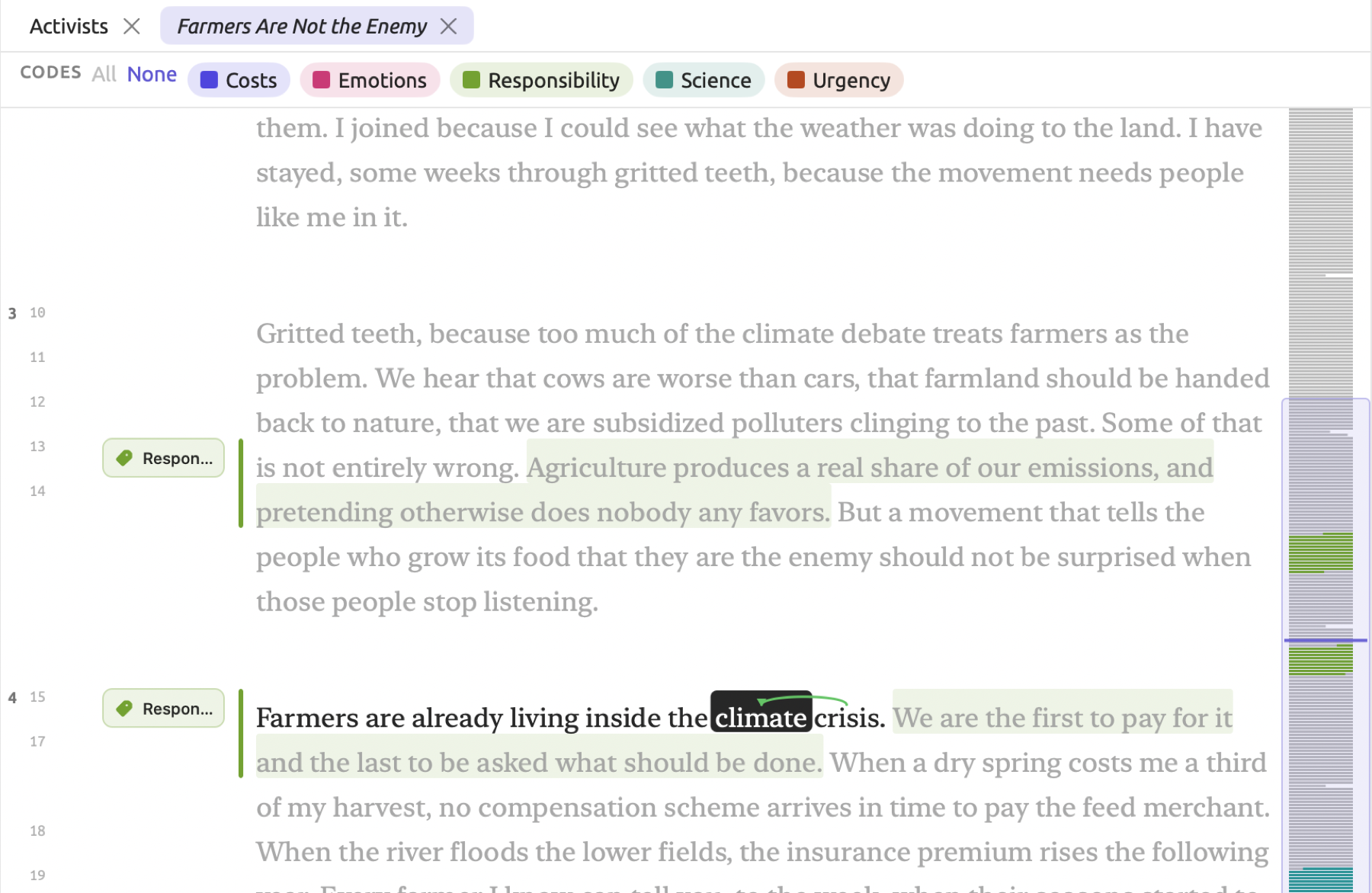
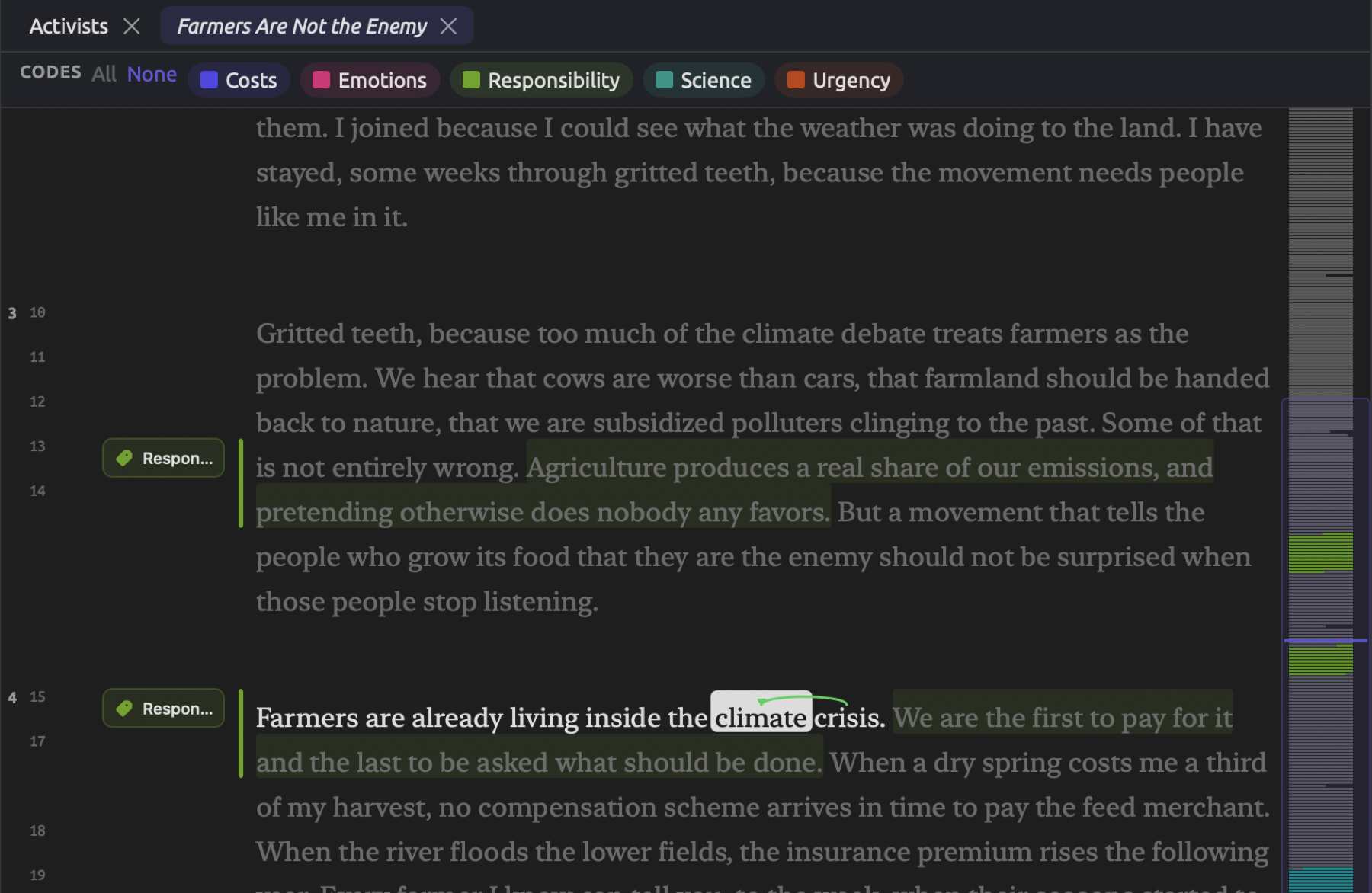
In the Word Sketch view or window, clicking Show in context will locate instances where the two words are linked regardless of their relation:
- The first click opens the document that holds the first such place in the preview tab (see The preview tab in Chapter 3, Projects and Documents), or makes its tab active if the document is already open. The reader scrolls to the sentence, selects the sketched word, and highlights the text from it to its partner.
- Each further click on the same partner moves on to the next place, in the order of the documents’ titles and then of the text.
- After the last place, the next click starts again at the first.
If you step to a place in a document that isn’t currently open, that document will automatically take over your preview tab. In the case of a prepositional phrase like on fuel, the places considered include all instances of fuel linked to the word sketched, regardless of relation or preposition. Entering a new word in the Word field restarts the process at the first place.
When stepping from the Word Sketch tab of either a set or the project, the tab belonging to the document will become active; click on the Word Sketch tab again prior to making the next step. If you would rather keep looking at the sketch during the process, use the Word Sketch window instead.
Exporting
There is a button in the bar to export the content displayed in your sketch. It looks like a box icon with an arrow.
- In both Map and Web displays, this button pulls out a menu which lets you choose whether to export your image or a CSV table of the partners. PNG and PDF save a picture of your sketch.
- In the List display, the button will save your CSV table directly.


Your saved image gets laid out again at a fixed size. This allows eight partners per relation max, which can be more than a narrow inspector shows.
Your saved CSV file contains rows for every partner in the sketch, up to 12 per relation. Each row contains Relation, Collocate, Lemma, Part of speech, Frequency, and logDice. Collocate is your partner as shown (on fuel). Lemma is your partner in its lemma form (fuel). Part of speech denotes its word class. If you were viewing a Code Sketch, your Relation column stores the name of your code.
A save dialog asks for the directory to which you want to save your exported content. The suggested filename will look something like word-sketch-climate, made from word-sketch- or code-sketch- and the sketched word. Multimode uses this button to export its Sketch Space, as covered in Exporting in Chapter 14, Sketch Space.